New Softwares And tools

System tools ,Internet Tools haking tools Web Design tools and More.........

Hacking tips and tricks

Hacking, windows, facebook and computer tricks. Learn to do cool tricks with your ....

This is default featured slide 3 title

Go to Blogger edit html and find these sentences.Now replace these sentences with your own descriptions.This theme is Bloggerized by Lasantha Bandara - Premiumbloggertemplates.com.

This is default featured slide 4 title

Go to Blogger edit html and find these sentences.Now replace these sentences with your own descriptions.This theme is Bloggerized by Lasantha Bandara - Premiumbloggertemplates.com.

This is default featured slide 5 title

Go to Blogger edit html and find these sentences.Now replace these sentences with your own descriptions.This theme is Bloggerized by Lasantha Bandara - Premiumbloggertemplates.com.

Showing posts with label Mobile Tips. Show all posts

Tuesday, February 19, 2013

How to Unlock Any 3g Dongle For All Sim Networks


nternet is growing day by day thousands of people buy 3g dongle/net setter or modem to surf the internet on their pc or laptop. Why people buy 3g usb dongle? Because it’s the coolest way to connect to internet anywhere with your laptop or tablet in car, house, park, club, party etc. You don’t need to seat in your computer room with a wired modem. 
    But when we buy these 3g dongle they are locked with a specific sim operator. You can use only that operator which is provided with that 3g dongle. Suppose their 3g plans price won’t go low. But another operator gives faster speed with cheaper price. Will you buy another operator dongle? 
Answer is NO. You don’t have to spend money on new dongle. I will show you simple ways to unlock your 3g dongle. So you can use any 3g operator sim with same dongle that you have.
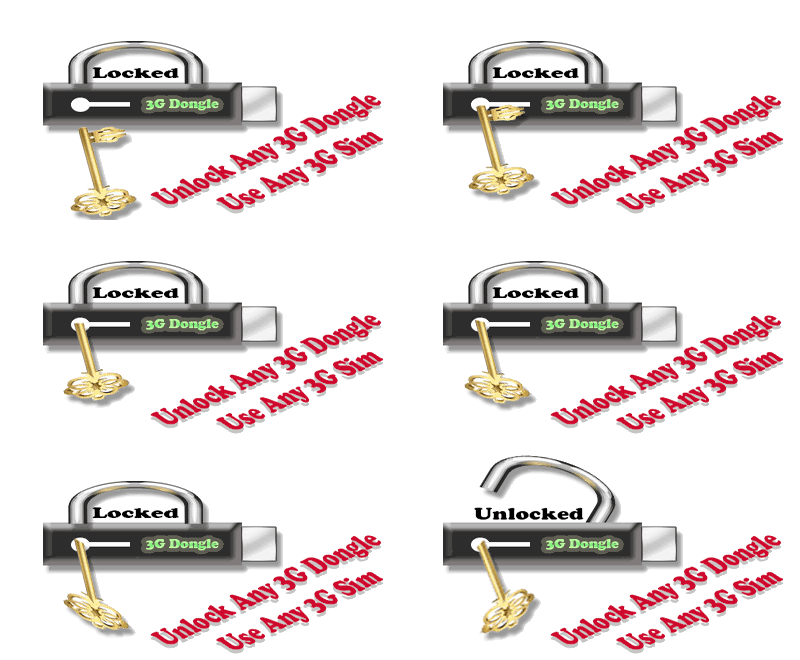
Unlock 3g data card

Well there are many software to unlock your data card by entering unlock code. You can get that unlock code from few softwares like universal master code. you can get this software on google  by searching for "universal master code" download it and enter your data card IMEI number and it will calculate your unlock code.

Another way to unlock your 3g data card / dongle.

  1. Download Dc Unlocker from here.
  2. Install this software.
  3. Open dc unlocker.
  4. Select modem manufacture and model as Auto Detected (Recommended).
  5. Now Scan your device.
  6. Click on Server. Enter your username and password. Now press click login.
  7. Now click on unlocking then unlock.
Thats it. Now you can use any sim with your 3g data card / dongle / Net setter. if you still fail to unlock your device. You can ask me in comment section i will definitely help you.

Hope you liked My this post please give your Suggestion , Advice below to improve this blog. If you have any question please don't hesitate to ask.

Best Android Browsers

Android is the smartphone operating system of choice these days. With the lion’s share of the mobile OS market, it’s no wonder that Android apps are the most searched for. Speaking of which, there are some absolutely necessary apps, and an internet browser is one of them. Of course, the built in Android browser is nothing to scoff at, but most of us require far more functionality like desktop browsers. Fortunately, there’s a couple of browsers out there that offer a huge number of features and pretty much replicate a desktop browser. Here’s the five best Android browsers.

Five Best Android browsers:

MOZILLA FIREFOX

Best Android Browsers - Firefox
The popular Mozilla Firefox finally released for Android and it packs in a ton of features that are sure to entice every Android user. It’s got pretty much everything the desktop Firefox version has, including private browsing, add-ons, personas and of course, super fast browsing with full Flash support. As of now not many add-ons and personas are available, but we’re sure that the number will increase in no time. It’s the first browser to support the Do Not Track feature as well. If you use Firefox on desktop, you can use Firefox Sync to setup your bookmarks and passwords in no time. It’s a great browser for people who are accustomed to Firefox, now the experience goes mobile!

GOOGLE CHROME


The world’s most used desktop browser makes the jump to Android! After being in beta for a pretty long time, Google Chrome is now available for Android as a release version. With Chrome, you get the fastest internet browsing experience, incognito browsing, tab management and more, but the stand out feature here is complete syncing with your desktop Chrome installation. By complete we mean everything from bookmarks to open tabs and everything that can be synced. The idea is to have a seamless transition between your desktop and Android device browsing. It’s got the trademark speed and simplicity going for it, so if that’s what you’re looking for, this is the browser for you!

OPERA MOBILE/MINI

Best Android Browsers - Opera
Opera is a stalwart in the mobile browser business, and Opera Mini is a standard on quite a lot of mobile phones. So there’s actually two versions of the browser. Opera Mobile is the full featured browser that can completely sync with the desktop Opera version and transfer bookmarks, speed dial, passwords and the like. Also included is the trademark Opera Turbo feature which compresses data and speeds up site loading. It’s a boon for limited data plan users. Opera Mini is the lighter version of the browser which lacks a few features, but makes up for it in speed and responsiveness. If you’ve got older hardware, Opera Mini would be a good bet, or else, go for Opera Mobile.

DOLPHIN BROWSER HD/MINI


Best Android Browsers - DolphinAmongst the big names here, Dolphin browser is relatively unknown, but is in absolutely no way inferior. In fact, it packs in more features than some of the other browsers mentioned here. Some of the features are voice input, third party plugin support, bookmark importing, intelligent tab management, multi touch zoom and much more. It can display a web page in magazine mode, which removes all the unnecessary formatting to present an easily readable version. There’s also on demand Flash toggling and emulation mode which can display sites in desktop, mobile or iOS optimized forms. Furthermore, there’s customized gestures to help easier navigation. The only thing is, the interface and host of features can be a little daunting for newer users and can slow down some devices. In that case, go for Dolphin Browser Mini, which includes a lot of the same features, but has a simpler interface, is less customizable and is lighter on resources.

SKYFIRE

Best Android Browsers - Skyfire
Skyfire has more going on for it than just a cool name. It’s actually designed with the consumer in mind. Skyfire includes most of the features on other browsers but has useful stuff like a web video converter that converts online videos to an Android compatible format for better viewability. It might not work with all videos, but it works quite well in most circumstances. There’s also a Facebook like button right on the main bar for the social bugs out there. Skyfire also has a host of add-ons available for it and actually comes close to Dolphin Browser for sheer functionality. The only Think in its armor is that it can get bloated and slow with addons installed. It’s worth a try though, definitely!

10 Easy Ways to save Andriod Battery Life


With the widespread proliferation of smartphones and tablets in the last few years, a lot of us have become very dependent on our devices. Staying connected all the time has become a necessity now and we can’t do that unless the battery in our device can provide enough juice for daily use. Battery life is one of the things to keep in mind while buying a smartphone or tablet, but even if great battery life is advertised, we might not get the optimum use out of it unless we follow a few guidelines and take some steps. Unnecessary usage and incorrect settings that come out of the box might actually decrease your Android device battery life, so here’s how to extend Android battery life in 10 easy ways!
Extend Android battery life in 10 easy ways:


1. Reduce screen brightness:

Beginning with the simplest of them all, this tip to extend Android battery life pretty much speaks for itself. If you want a super bright screen, prepare for the battery in your device to last for lesser time because a brighter screen is going to drain your battery like no other, and this is especially true for devices with large screens like The Samsung Galaxy S3 or HTC One X. The built in auto brightness function will conserve battery and adjusts screen brightness according to ambient light, but it’s rather dim most of the time, so set it manually at a reasonable level.

2. Kill useless background tasks and apps:

A lot of apps run in the background and use up processing power for no good reason, so first make sure that you use apps from reputed sources and developers. Get an app like “Advanced Task Killer” or “Tasker” to see what’s running in the background, so you can stop the unwanted ones as well as clear cache.

3. Uninstall unnecessary apps:

Similar to the previous point, some apps unnecessarily keep checking the internet for updates or notifications and also for ads. So if there’s an app that displays way too many useless notifications, bin it. Also, you can’t really be sure where exactly the app is trying to reach, so the lesser apps you can manage with, the better.

4. Get a proper antivirus solution:

Because of Android being one of the most used operating systems around the world, it is highly targeted by hackers and cyber thieves. With a proper antivirus solution installed, you can be at peace that not only your data and online activity is secure, but also that no malicious apps are running in the background and eating up your precious battery life. Norton Mobile Security and avast! Mobile Security are two good such apps.
How to extend Android battery life - Norton Mobile Security

5. Turn off services you don’t use:

A lot of people keep Bluetooth, GPS and even Wi-Fi on when there’s really no use for it. When you’re travelling around and not actually transferring data these services consume a lot of battery power, so make sure to turn off these when you step out of the house and turn them on only when you need it. You really don’t need to keep detecting all the Wi-Fi networks around you, you most probably won’t be able to access them anyway.

How to extend Android battery life - Meme6. Disable widgets you don’t need:

If you have a load of widgets on your homescreen that keep updating, you’re not going to get much battery life out of your device. Not only do these widgets constantly update and transfer data which can be valuable on limited data plans, they also drain your battery whenever you just whip out your phone to check the time or see if there’s notifications.

7. Turn off haptic feedback and interaction tones:

There’s really no point in getting beep sounds every single time you touch the screen and neither does it make sense to keep haptic feedback on, you know when you’re touching the screen or pressing a button, don’t you? Those keypad tones are also rather annoying other than the fact that it drains that extra bit of battery for no good reason.

8. Get rid of live wallpapers, too much vibration, extra loud ringtones and message tones:

A live wallpaper sure does look super cool, but it requires the GPU to work just a little but harder to render it, which in turn has a negative effect on the battery life. Same with very loud ringtones or message tones, more juice has to be given to the speakers for more volume, so keep it at a moderate level and on silent mode whenever possible. Vibration is another function that drains battery quickly, so choose a type that is noticeable yet not going to sound like a mini earthquake when kept on a table.

9. Make sure to set all notifications to push:

If you’re a social animal and must get notifications for all communications, make sure that all your apps and services are set to push notifications mode, so that you get notified only when there’s something new instead of the phone checking by itself at intervals. This unnecessary checking does reduce the battery life and surprisingly a lot of apps have checks at intervals.

10. Smart usage of high speed networks and how signal strength affects battery:

How to extend Android battery life - 4G LTEYour Android device has to work a lot more and consequently demands more power when it has to function in high speed networks like 4G LTE and 3G. So if you’re in an area that doesn’t have great coverage of high speed networks, turn off high speed network access and run on good ‘ol 2G or 2.5G. Similarly, it also has to work more in low signal areas, so don’t be surprised if your phone struggles to keep going on throughout the day in remote places with very low signal strength.
Those were 10 easy ways to extend Android battery life, I’m sure that using all or even some of them if you don’t already will keep your Android device on for longer. Do let us know if there’s something to be added and you’re welcome to share more battery saving tips as well!

Monday, February 18, 2013

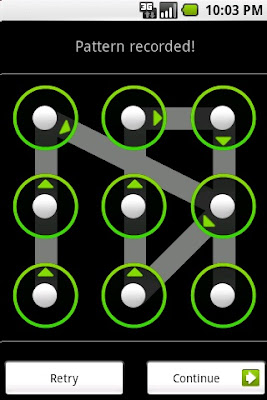
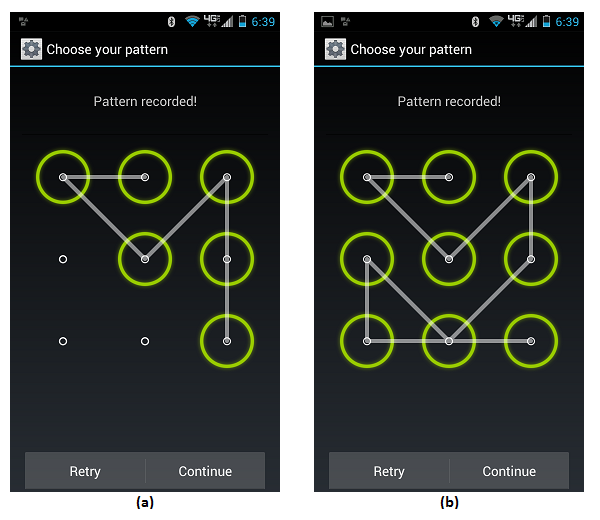
HACK ANDROID PATTERN LOCK


Hello friends.....,

I am here with a new cool hack....,

i m here to show you how to hack android pattern

lock...,

image


Yup!! the android pattern lock can be hacked!!!

Follow the procedure...

 Thing you need:- 
 {Note:- USB debugging must be on } 

 NOW LOCK YOUR MOBILE WITH YOUR DESIRED PATTERN.., AND CONNECT TO PC USING USB CABLE AND FOLLOW THE PROCEDURE GIVEN BELOW......


Android Debug Bridge (adb) is a versatile command line tool that lets you communicate with an emulator instance or connected Android-powered device. It is a client-server program that includes three components: 

  • A client, which runs on your development machine. You can invoke a client from a shell by issuing an adb command. Other Android tools such as the ADT plugin and DDMS also create adb clients.
  • A server, which runs as a background process on your development machine. The server manages communication between the client and the adb daemon running on an emulator or device.
  • A daemon, which runs as a background process on each emulator or device instance.
Procedure:- 
  1. Download ADB tool from the given link
  2. Extract it. (password is - raipurtricks.in)
  3. Now open cmd.exe from the given tool,
         type adb.exe [enter]
  4. Now type the following command-
         adb shell [enter]
         rm /data/system/gesture.key [enter]
         reboot [enter]

    NOW WAIT.. YOUR DEVICE WILL REBOOT.. AND WILL  

    ASK FOR PATTERN...,


    MAKE ANY PATTERN.., AND YOUR DEVICE WILL BE  
    UNLOCKED !!!!


How To Unlock Any Phone 's Security code


“How to unlock Phone Security code?”
‘Read the full trick before trying this’
Think how worse wiill that be if you do not know the security code of your own cell phone?
i.e. If you have forgotten or If someone might have changed it.
Do not worry I will let you know about the procedure to unlock your locked Nokia(for other phones see the next method below this) phone with a “MASTER CODE” (Note: This wont work for some Models).

For NOKIA :-


You can get “Nokia MASTER CODE” for your phone using ur
phone’s IMEI.


After getting IMEI CODE


                                                                         Visit:

www.nokiamastercode.com/
or
www.nokialockcode.com/mastercode.php
or
www.nokialockcode.com/calculate.php


After getting your phone’s master code use it in the place of security code.
If this does not work try the another trick given below.

“For Nokia,Sony,Alcatel ,Siemens, Vitel, Maxel, Panasonic, AEG, Samsung, Motorola and LG” 

For other phone models including nokia this trick looks comfortable than the above one.
First of all for you is to download a 150kb “MASTER CODE UNLOCKER” to your computer and then you can get the master code for your phone. upon which you can use it to unlock phone.


Download it from here:


Tested spyware free 
Server -2:
Note: Download and extract from Winzip or Winrar. Then install it on desktop and Open the installed file.The application looks like this

GSM Secret Codes


    <<<GSM Secret Codes>>>

*#61#  Check redirection status. Cancel all redirections ##002#

*43# to activate call waitinG, to deactivate #43#

If your phone doesn't have incoming call barring and outgoing call barring, you can try this. For outgoing call barring dial *33*barcode*# and pres Ok
To deactivate it dial #33#barcode*#. On any phone on any network type in **43# to enable conference calls. You can make up to 7 calls at once
If you need to block SMS reception (if you are spammed by someone) just press this code:*35*xxxx*16# xxxx is your Call Barring code (default is 0000). To remove this barring type:#35*xxxx#
If you want to hide/show your phone number when calling, put one of these codes below in front of the number that you are going to call.(*#30# / *#31# or *31# / #31# ) Works on some networks.Typing *0# or *nm# on the beginning of a txt message gives you detailed delivery report on some networks.. But turn off reports in message settings before
When the sim card-pin blocked type **042*pin2 old*newpin2*newpin2

                          CHINA Mobile Codes


Guys . Check Out These Codes .....


LCD Contrast => *#369#
Software version => *#900#
Set English languse => *#001#
Set Default language => *#0000#

Default user CODEx 1234, 1122, 3324, 5678
Enginer mode => *#110*01#
Factory mode => *#987#

Restore Factory Settings
*#77218114#
*#881188#
*#94267357#
*#9426*357#
*#19912006#
*#118811#
*#364663#
*#987*99#
>Default user code : 1122, 3344, 1234, 5678
>Engineer mode : *#110*01#
>Factory mode : *#987#
>Enable COM port : *#110*01# -> Device -> Set UART -> PS Config -> UART1/115200
>Restore factory settings : *#987*99#
>LCD contrast : *#369#
>Software version : *#800#
>Software version : *#900#
>Set default language : *#0000# Send
>Set English language : *#0044# Send
>Set English language (new firmware) : *#001#